 SidePulse
 Pro
Pro Dot
DotSidePulse
Setup & user guide
SidePulse Pro fits a MacBook Pro SD slot. SidePulse Dot works with USB-C on Mac, Linux, Windows, iPhone, and compatible Android phones (beta). On a computer, the lights change when you write a text file to the device. The macOS software makes agent status automatic.
1. Plug it in
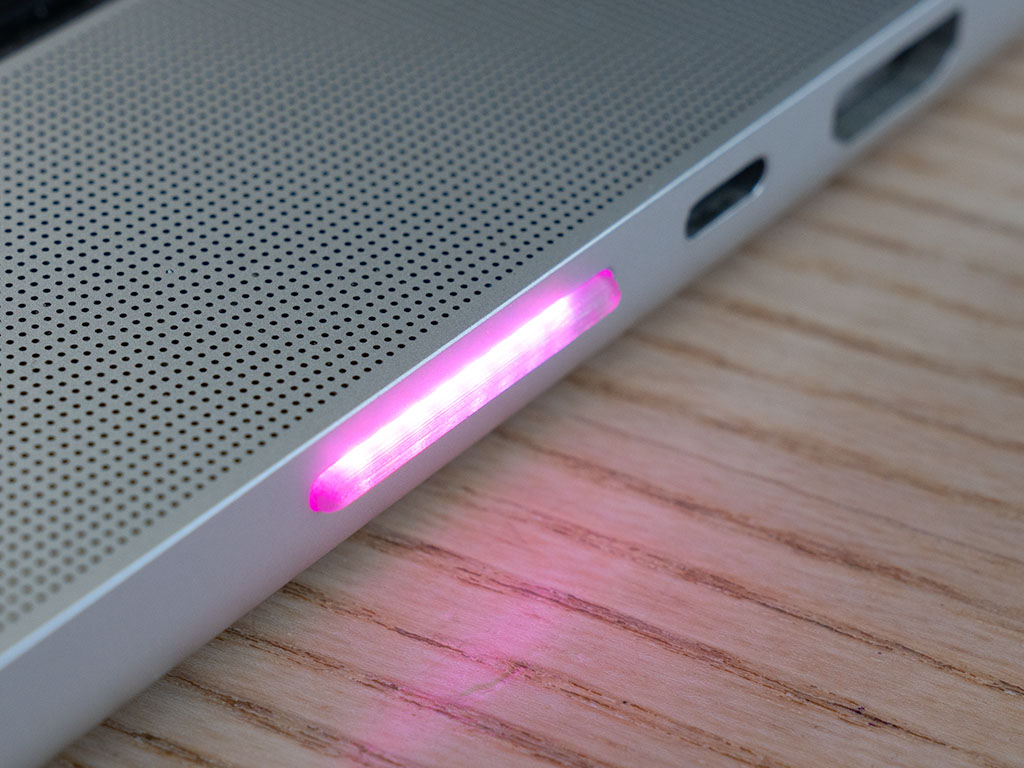
SidePulse Pro — SD card slot
- Hold the card with the gold contacts facing down and going in first, and the LED edge facing you.
- Push it into the SD slot of your 14" or 16" MacBook Pro in one smooth, firm motion, all the way until it stops.
- Give it a few seconds. A small SidePulse drive appears in Finder and the LEDs light up.
One decisive push. Pushing the card halfway, pausing, and then pushing the rest of the way can leave it undetected: the Mac sees the contacts land in two stages and gives up. If nothing shows up, pull the card straight out and insert it again in a single motion.
To remove it, eject the SidePulse drive in Finder, then pull the card straight out. It can stay in permanently; the software keeps it mounted through sleep and lock.
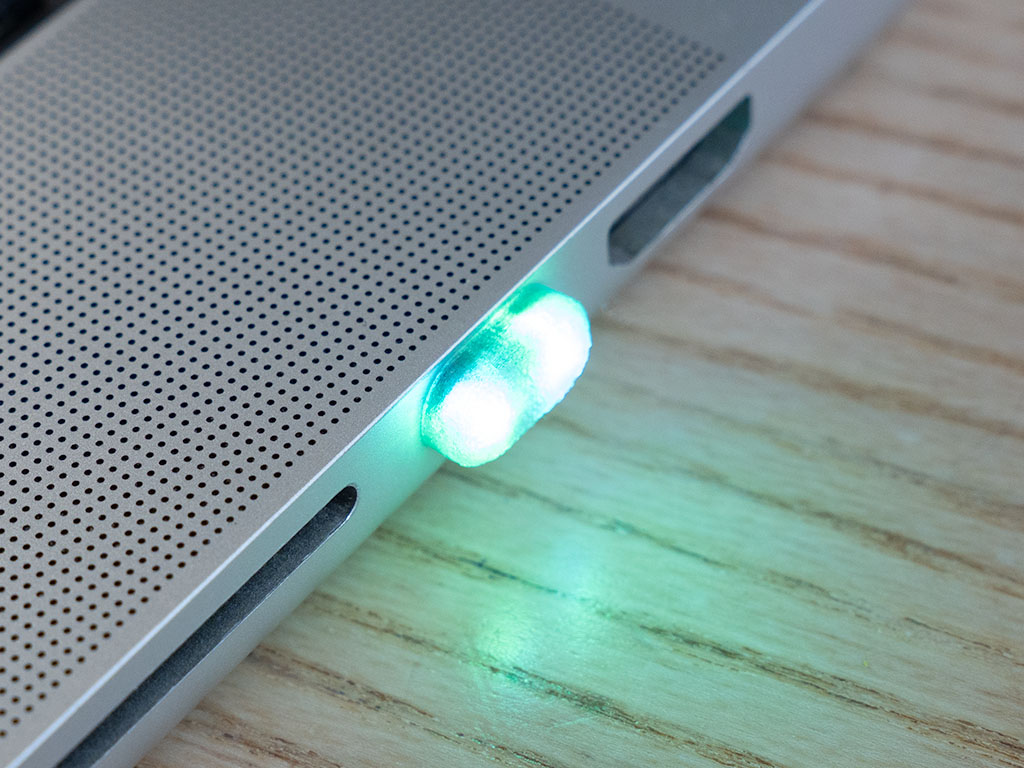
SidePulse Dot — USB-C
- Plug it into a USB-C port on a Mac, Linux or Windows computer, a USB-C iPhone, or a compatible Android phone (beta). It fits either way up.
- On Mac, Linux and Windows, it mounts as a small SidePulse drive. Write
LEDS.LEDto control the lights directly. - On an iPhone, install the SidePulse iOS app, currently in beta: join on TestFlight or build it from GitHub. The dot is driven from your Mac over push notifications, so it works even with the phone locked.
- On Android, the beta SidePulse app supports local patterns and USB playback. Remote agent updates need a compatible bridge and setup.
2. Install the software
One command, on macOS. Paste it into Terminal:
curl -fsSL https://sidepulse.io/setup.sh | sh
If macOS offers to install the command line developer tools, say yes; the installer needs Python 3.10 or newer, which they include. Run the same command again any time to upgrade.
What it does:
- Installs the
sidepulsecommand into~/.local/bininside its own isolated environment. - Installs the agent hooks for Claude Code, Codex, Cursor, Junie and Grok, so the LEDs follow your coding agents automatically.
- Installs the menu-bar app and enables it at login.
- Installs eject prevention for SidePulse Pro, so the card stays mounted after sleep or lock.
Check that it works:
sidepulse write "#30d158 800ms pulse\nrepeat"   # green breathing
sidepulse write off
Prefer to do it by hand? The device is just a file:
echo "#30d158 800ms pulse" > /Volumes/SidePulse*/LEDS.LED
Both apps are open source: the sidepulse CLI and the SidePulse iOS app are on GitHub. The iOS app is in beta on TestFlight.
3. Using it
- Agent status. Nothing to do. While an agent is working the LEDs roll cyan, they pulse amber when it needs you, and settle green when it is done.
- Menu bar. Click the SidePulse icon to see recent sessions, jump to an agent, or switch the LEDs between agent status and battery.
- Battery status. In the menu bar, open SidePulse, find your device, and select Battery Level.
- Lid closed. The menu-bar app can keep the Mac awake while agents run and let it sleep when they finish. Enable it in Settings.
- iPhone. Run
sidepulse linkon your Mac, scan the QR code with the SidePulse app, thensidepulse push "#30d158 pulse" --title "Done"reaches the Dot in your pocket. Shortcuts works too. - Your own scripts. Anything that can write a text file can drive the lights. The animation language is documented in the LED format reference; all commands are in the README.
Eject prevention. macOS unmounts the SD reader when the Mac sleeps or locks, which would leave SidePulse Pro dark until you reinsert the card. The installer adds a small helper that keeps the card mounted. If you skipped it, run
sidepulse setupagain or install it from the menu-bar app's Setup window. It is not needed for SidePulse Dot.
Troubleshooting
- The Pro card is not detected. Pull it out and reinsert it in one decisive push, all the way in. Try a different orientation only if it does not go in easily; never force it.
- The card disappears after sleep or lock. Run
sidepulse setupagain, or open the menu-bar app's Setup window and install Eject Prevention. sidepulse: command not found. Add~/.local/binto your PATH, or call it as~/.local/bin/sidepulse.- LEDs stay dark. Make sure the drive is mounted (
ls /Volumes), then writeofffollowed by a program. Programs are limited to 512 bytes and 20 lines. - Something else. Email peter@inteliwear.xyz, ask on Discord, or open an issue on GitHub.
Care
Keep the device dry and away from heat. Do not bend the Pro card or force either device into a port. Not a toy: small parts, keep away from small children. Nothing inside is user-serviceable.
Regulatory information
Products: SidePulse Pro (SD card, 8 LEDs) and SidePulse Dot (USB-C, 2 LEDs).
Responsible party: InteliWEAR LLC, Palo Alto, CA, USA. support@inteliwear.xyz
FCC compliance statement. This device complies with part 15 of the FCC Rules. Operation is subject to the following two conditions: (1) This device may not cause harmful interference, and (2) this device must accept any interference received, including interference that may cause undesired operation.
Caution. Changes or modifications not expressly approved by the party responsible for compliance could void the user's authority to operate the equipment.
Note. This equipment has been tested and found to comply with the limits for a Class B digital device, pursuant to part 15 of the FCC Rules. These limits are designed to provide reasonable protection against harmful interference in a residential installation. This equipment generates, uses and can radiate radio frequency energy and, if not installed and used in accordance with the instructions, may cause harmful interference to radio communications. However, there is no guarantee that interference will not occur in a particular installation. If this equipment does cause harmful interference to radio or television reception, which can be determined by turning the equipment off and on, the user is encouraged to try to correct the interference by one or more of the following measures:
- Reorient or relocate the receiving antenna.
- Increase the separation between the equipment and receiver.
- Connect the equipment into an outlet on a circuit different from that to which the receiver is connected.
- Consult the dealer or an experienced radio/TV technician for help.
Because the devices are too small to carry the statement above, it is provided here and on the packaging, as permitted by 47 CFR §15.19(a)(5).